
免責事項: 本スクリプトの実行は自己責任で行ってください。実行前に必ずシステムの復元ポイントを作成することをお勧めします。本スクリプトの使用により生じたいかなる損害についても、当サイトは一切の責任を負えません!!
そういうわけで、Windowsの利用に必要なものといえば『軽量化』です。
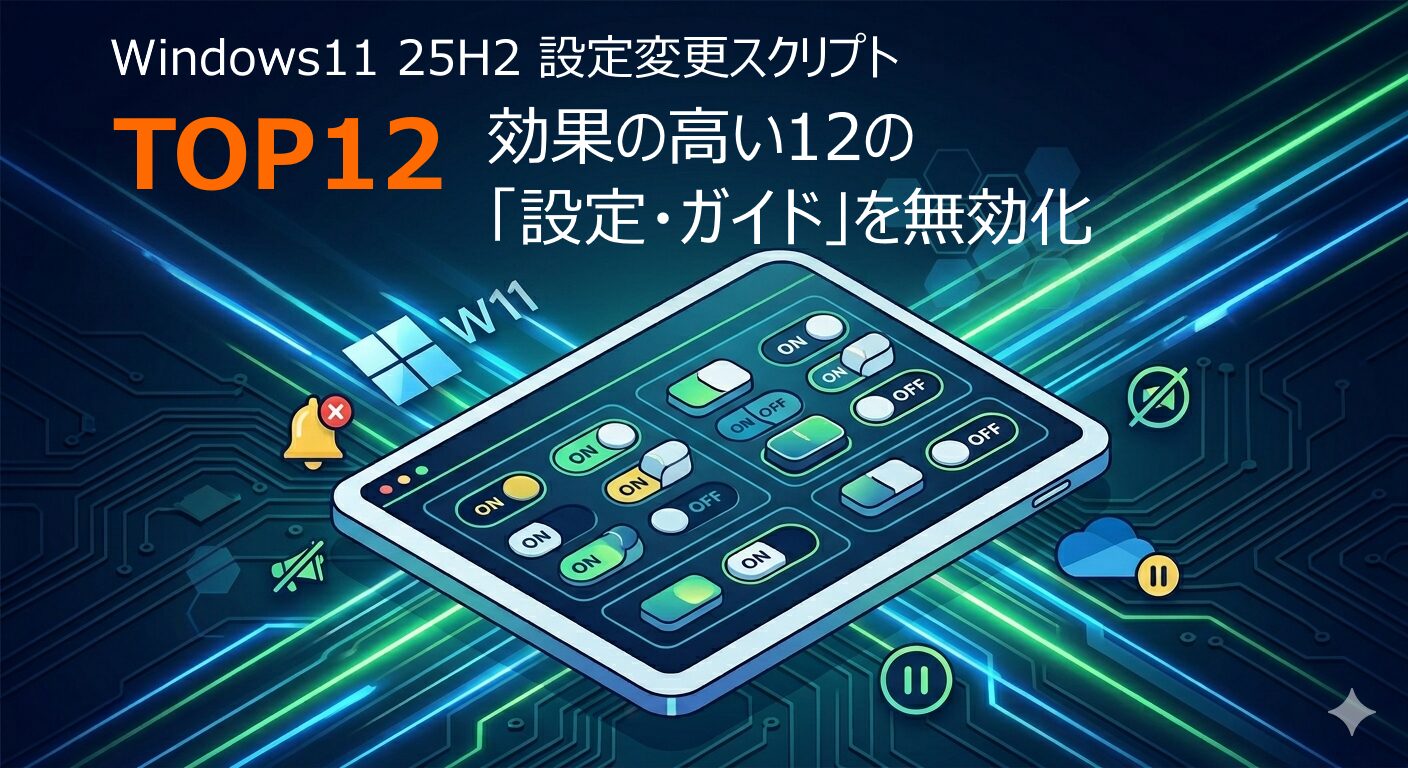
MSは便利機能をくっつけすぎて、製品本来の機能を破壊するという業があるのですが、Windows11も嫌な感じで重たくなってきて、開発者が『正常化』を宣言するという事態になったりしていますが……
……ま、正常になるまではユーザーが自力で何とかする必要があります。
Windows11高速化TOP12自動設定スクリプトと解説
なので以下(内容は文末)のようなスクリプトを用意してみました。
面倒な機能の停止を一括で12個実施してくれます。
「高速化設定」は言えば星の数ほどあるのですが、トップ12くらいまでやればまあ十分かなと思います(手動設定はYouTubeで「Windows11高速化設定」とか、検索すれば出てきます)。
AI無効とか、ウィジェット無効とかは嫌な人は嫌だと思いますのでDL後にps1ファイルを編集してください。
「ウィジェットは残したい」とかの要望があればその項目を丸ごと削除してください。
「メモ帳」でファイルを開いて、消して上書き保存でOKです。
そのまま使うならファイルをDLして解凍して「.ps1」ファイル確認し、右クリックして「PowerShellで実行」から実行してください。
(Speedupで気に入らなければGoBackで元に戻すこともできます)
# --- 準備:管理者権限への自動昇格 ---
if (-not ([Security.Principal.WindowsPrincipal][Security.Principal.WindowsIdentity]::GetCurrent()).IsInRole([Security.Principal.WindowsBuiltInRole]::Administrator)) {
    Start-Process PowerShell -ArgumentList "-NoProfile -ExecutionPolicy Bypass -File `"$PSCommandPath`"" -Verb RunAs
    exit
}

Write-Host "--- Windows 11 25H2 最適化処理を開始します (TOP 12) ---" -ForegroundColor Cyan

# 1. OneDriveの自動起動停止(第1位)
Remove-ItemProperty -Path "HKCU:\Software\Microsoft\Windows\CurrentVersion\Run" -Name "OneDrive" -ErrorAction SilentlyContinue

# 2. セットアップ完了通知の停止(第2位)
Set-ItemProperty -Path "HKCU:\Software\Microsoft\Windows\CurrentVersion\UserProfileEngagement" -Name "ScoobeSystemSettingEnabled" -Value 0 -ErrorAction SilentlyContinue

# 3. Copilot (AI) の無効化(第3位)
if (-not (Test-Path "HKCU:\Software\Policies\Microsoft\Windows\WindowsCopilot")) { New-Item -Path "HKCU:\Software\Policies\Microsoft\Windows\WindowsCopilot" -Force }
Set-ItemProperty -Path "HKCU:\Software\Policies\Microsoft\Windows\WindowsCopilot" -Name "TurnOffWindowsCopilot" -Value 1

# 4. スタートメニューの「おすすめ」非表示(第4位)
Set-ItemProperty -Path "HKCU:\Software\Microsoft\Windows\CurrentVersion\Explorer\Advanced" -Name "Start_TrackDocs" -Value 0 -ErrorAction SilentlyContinue

# 5. ウィジェットの無効化(第5位)
Set-ItemProperty -Path "HKCU:\Software\Microsoft\Windows\CurrentVersion\Explorer\Advanced" -Name "TaskbarDa" -Value 0 -ErrorAction SilentlyContinue

# 6. 診断データの送信制限(第6位)
Set-ItemProperty -Path "HKLM:\SOFTWARE\Microsoft\Windows\CurrentVersion\Policies\DataCollection" -Name "AllowTelemetry" -Value 0 -ErrorAction SilentlyContinue

# 7. 広告識別子の無効化(第7位)
Set-ItemProperty -Path "HKCU:\Software\Microsoft\Windows\CurrentVersion\AdvertisingInfo" -Name "Enabled" -Value 0 -ErrorAction SilentlyContinue

# 8. スタートメニューでのWeb検索(Bing)停止(第8位)
if (-not (Test-Path "HKCU:\Software\Policies\Microsoft\Windows\Explorer")) { New-Item -Path "HKCU:\Software\Policies\Microsoft\Windows\Explorer" -Force }
Set-ItemProperty -Path "HKCU:\Software\Policies\Microsoft\Windows\Explorer" -Name "DisableSearchBoxSuggestions" -Value 1

# 9. スタートアップからTeams(個人用)を除去(第9位)
Remove-ItemProperty -Path "HKCU:\Software\Microsoft\Windows\CurrentVersion\Run" -Name "com.squirrel.Teams.Teams" -ErrorAction SilentlyContinue

# 10. 「ヒントと提案」の通知を停止(第10位)
Set-ItemProperty -Path "HKCU:\Software\Microsoft\Windows\CurrentVersion\ContentDeliveryManager" -Name "SubscribedContent-338389Enabled" -Value 0 -ErrorAction SilentlyContinue

# 11. 検索ハイライトの非表示(第11位)
Set-ItemProperty -Path "HKCU:\Software\Microsoft\Windows\CurrentVersion\SearchSettings" -Name "IsDynamicSearchBoxPresent" -Value 0 -ErrorAction SilentlyContinue

# 12. エクスプローラー内の広告通知を非表示(第12位)
Set-ItemProperty -Path "HKCU:\Software\Microsoft\Windows\CurrentVersion\Explorer\Advanced" -Name "ShowSyncConfirmation" -Value 0 -ErrorAction SilentlyContinue

Write-Host ""
Write-Host "--- すべての処理が完了しました。PCを再起動してください ---" -ForegroundColor Green
Write-Host "Enterキーを押すと終了します..."
Read-Host
まあ、実行するとウィジェットなんかがなくなってスッキリした……と僕は思いますが、ニュースとかを見ている人からすれば余計なお世話なので、そこは自己判断、自己責任でお願いします‼
 【
【





ピンバック:雑記「3K大画面で軽量なタブレットPC CHUWI Hi10 Max 13インチ 購入」 - Campsite7
ピンバック:Windows11高速化TOP50自動設定スクリプト25H2 - Campsite7